Git workflow
Because every request is a plain-text .tiger file on disk, the collection
folder is a normal Git repository. Tiger's Team sync surfaces the most
common Git operations in plain words, so you never have to leave the app to
version-control and share your API definitions.
Why Git and API clients belong together
Requests evolve alongside the services they test. An endpoint gets a new required header, a payload schema changes, authentication switches from API key to OAuth. With most API clients those changes are opaque: the tool syncs its own binary format to a private cloud and there is no history you can inspect or discuss. Tiger takes the opposite approach: each change to a request is a line change in a text file, so your normal diff, blame, and code-review workflow applies directly.
A Tiger collection stored in a shared Git repository gives a team a single source of truth for how the API is called, with a full audit trail and the ability to propose and review changes before they land on main.
Tiger shells out to the git binary that is already on your
PATH. SSH agent forwarding, credential helpers, GPG signing, and any
other configuration you have set up in your terminal all work automatically.
Team sync
Every collection stored in a folder has a Team sync status in the sidebar and a Team sync card on its collection page. Click either (or use the collection context menu) to open the Team sync dialog. It shows one status at a glance (up to date, local changes, updates from your team, conflict) and one main button, Sync with team, which gets your teammates' changes and shares yours in a single step. Below the status:
- Your changes, grouped by request, with a diff of every changed file and a way to discard a change.
- Save version: a note describing the change, kept on your computer without sharing it.
- Recent versions: the latest saved versions with author and date.
- Advanced (for Git users): the current branch, switch or create branches, get the team's changes only, share versions only, and the full diff.
The Git terms in the rest of this page map to Team sync like this: commit is save version, push is share, pull is get team's changes, branch is version line, and remote is shared repository. The sections below describe what happens underneath.
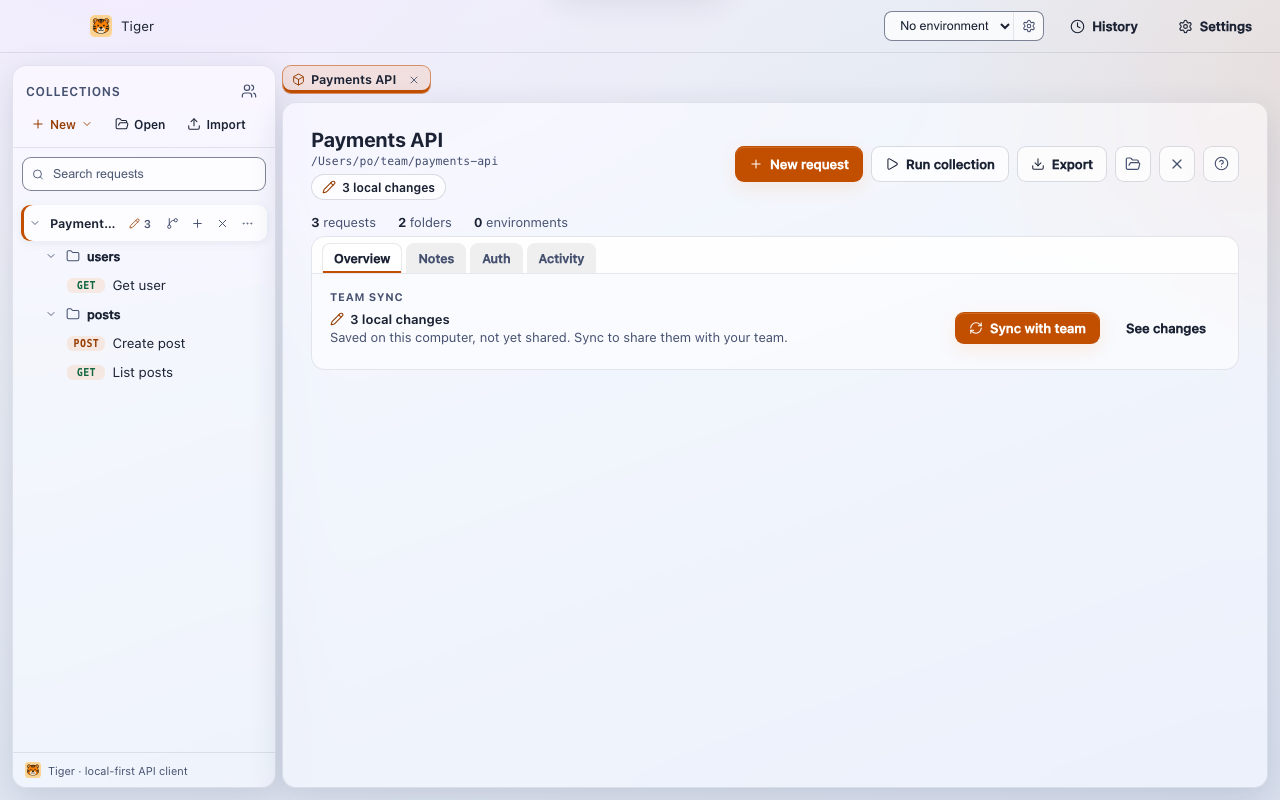
Status is polled every 60 seconds passively. The passive poll deliberately does not contact the network: ahead/behind counts are computed from refs already on disk. Network-touching operations (fetch, pull, push, sync) only run when you explicitly trigger them.
Supported operations
Status
Lists every file that differs from the last commit, together with a short status
code (M modified, A added, D deleted,
?? untracked). The count of changed files appears as a badge on the
collection in the sidebar so you can see at a glance that there is unsaved work.
Diff
Click any file in the changed-files list to open a unified diff view. The diff
covers both staged and unstaged changes. Untracked files appear with a
new file (untracked) marker so nothing is silently hidden.
Because .tiger files are structured plain text, the diff is readable
without special tooling. A field change like updating a base URL from staging to
production looks exactly like what it is:
-  baseUrl: https://staging.api.example.com
+  baseUrl: https://api.example.com
Commit
Enter a commit message and press Commit. Tiger stages every changed and untracked
file in the collection folder (git add -A) and then creates the commit.
There is no partial staging UI; the intent is that a commit records a coherent
snapshot of the collection. If you need fine-grained staging, use your terminal
alongside Tiger - the two operate on the same working tree.
Pull
Pulls the upstream branch with --ff-only. This means the operation
succeeds only when no local commits exist that are not already on the remote, keeping
the history linear. If the pull cannot fast-forward (because you have local commits
and the remote has diverged), Tiger reports the conflict and suggests using Sync
instead.
Push
Pushes the current branch to its configured upstream remote. If no upstream is set yet, connect the shared repository first (see Set remote below). Push uses your system Git credentials, so SSH keys, macOS Keychain entries, and Git credential helpers all work without additional setup.
Fetch
Refreshes the remote-tracking refs so the up and down counts in the Team sync status reflect the real state of the remote. Fetch does not modify your working tree or local branch. It is triggered automatically as part of Sync but can also be run on its own with the refresh button next to the status.
Branches and checkout
Under Advanced, the version line (branch) picker shows all local branches and the current branch.
Select a branch to check it out. You can also create a new branch by typing a name
that does not yet exist in the picker - Tiger runs git checkout -b
<name> and switches to it immediately.
Switching branches changes the files on disk, so the collection view updates to
reflect the requests on the new branch. This is useful for keeping a
main branch with approved requests and a feature branch where new
endpoints are drafted.
Log
The log view shows the most recent 20 commits: short hash, subject line, author name, and a human-readable relative timestamp (2 days ago, 3 weeks ago). The log is read-only; to inspect a specific commit in detail use your terminal or a Git GUI alongside Tiger.
Discard
Discard all (or discard a single request's change) throws away unsaved edits. Under the hood Tiger moves them into a Git stash named Tiger: discarded changes, including new files, and shows an Undo button right after, so an accidental discard can be brought back. Tiger asks for confirmation first.
Undo is offered right after a discard. Once you move on, recovering the changes
means finding the stash with git stash list, so save a version first if
you might want the edits back.
Init
If you opened a plain folder that is not yet a Git repository, Team sync shows
a Turn on version tracking step. This runs git init
in the collection root. After initialization the full Team sync dialog becomes available.
You can then add a remote and push to share the collection with your team.
Set remote
Paste a repository URL (HTTPS or SSH) into the Set remote field to connect the local
repository to a remote. If an origin remote already exists, Tiger
updates its URL; otherwise it adds a new origin. After setting the URL
Tiger immediately publishes the current branch with
git push -u origin HEAD so future push and pull operations know their
upstream.
Accepted URL formats:
https://github.com/org/repo.gitgit@github.com:org/repo.gitssh://git@gitlab.com/org/repo.git
Clone
From the welcome screen or the sidebar, choose the clone option, paste a
URL, and pick a parent directory. Tiger runs git clone and then opens
the resulting folder as a collection. This is the recommended way to bring a shared
team collection onto a new machine.
Sync
Sync is a single-button operation designed for teams that want a simple "share and receive" workflow without thinking about pull vs push order. It does the following in sequence:
- If there are any uncommitted changes, commits them with the message you typed (defaulting to Update collection).
- Runs
git fetchto refresh the remote-tracking refs. - Pulls the upstream branch using a merge strategy
(
git pull --no-rebase) so the operation tolerates both sides having new commits. - Pushes the local branch to the remote.
If the merge step hits a conflict, Tiger aborts the in-progress merge so the working tree is never left in a half-merged state. It reports a clear message telling you to open the folder in your editor, resolve the conflict markers, and then sync again.
Sync is the right operation for day-to-day team sharing. Use plain Pull only when you know you have no local commits and want a strict fast-forward.
Reviewing API changes in a pull request
Because every request is a text file, opening a pull request against a Tiger collection on GitHub, GitLab, or Bitbucket gives reviewers a meaningful diff in the platform's own review UI. Here is a typical workflow:
- Create a feature branch. In Team sync under Advanced, type the new branch name in the branch picker and press Enter. Tiger creates and checks it out.
-
Add or modify requests. Work normally inside Tiger - add a new
endpoint, change a header, update the body schema. Each change lands in the
corresponding
.tigerfile on disk. - Commit. Write a descriptive message such as Add POST /orders endpoint with auth header and save a version from Team sync.
- Push. Push the branch to the remote. If this is the first push of the branch, Tiger sets the upstream automatically.
- Open a pull request on your Git host. Reviewers see line-level diffs like the one below and can comment on specific fields.
--- a/orders/create-order.tiger
+++ b/orders/create-order.tiger
 post {
-  url: {{baseUrl}}/v1/orders
+  url: {{baseUrl}}/v2/orders
 }

 headers {
+  X-Idempotency-Key: {{idempotencyKey}}
   Content-Type: application/json
 }
A reviewer can check out the branch locally, open the collection in Tiger, run the requests against a staging environment, and leave comments - the same loop they follow for code review. Once approved the branch is merged and the change is part of the permanent history of the collection.
Authentication and credentials
Tiger never manages Git credentials itself. It shells out to the system
git binary with GIT_TERMINAL_PROMPT=0, which prevents Git
from trying to open an interactive password prompt inside the app. All credential
resolution happens through the helpers you have already configured:
- SSH keys and your
ssh-agentare used automatically for SSH remotes. - macOS Keychain, Windows Credential Manager, and the Git credential store work for HTTPS remotes.
- If a push or pull fails with an authentication error, configure the credential helper in your terminal first, then retry from Tiger.
Merge conflicts
Tiger does not have a merge conflict editor. When a pull or sync produces conflicts,
Tiger aborts the merge and tells you which step failed. Open the collection folder
in your editor of choice (VS Code, Neovim, etc.), resolve the standard
<<<<<<< conflict markers in the
.tiger files, save the files, and then commit the resolution from Tiger
or your terminal. After the commit, sync again to push the resolved state to the
remote.
Because the format is structured plain text, conflict markers appear inline with the field values and are easy to read:
headers {
<<<<<<< HEAD
  Authorization: Bearer {{stagingToken}}
=======
  Authorization: Bearer {{productionToken}}
>>>>>>> origin/main
}
Working without a remote
Git is not required to use Tiger, and a remote is not required to use Git inside Tiger. If you initialize a repository but do not add a remote, commit and log operations work fully locally. Sync reports Changes saved locally (no team remote configured) and returns successfully. Push and pull are the only operations that require a configured remote.
Limitations
- There is no partial staging (no interactive
git add -p). Every commit captures the entire working tree. Use your terminal for cherry-picked staging. - The log view is limited to the 20 most recent commits. For full history, use your terminal or a dedicated Git GUI.
- There is no stash UI. Use
git stashin the terminal when you need to set aside changes temporarily. - Submodules are not supported.
- Tiger requires
gitto be onPATH. On macOS, install the Xcode Command Line Tools (xcode-select --install) or Homebrew Git. On Windows, install Git for Windows.